wiki_info
DO YOUR TESTS ON THE PAGE DE TESTS
With a few exceptions, all wiki pages can be modified by members logged on to the site.
Each modification is archived, and it is always possible to go back to a previous version in the event of an error or vandalism.
Basic use
On the right-hand side of each page, you will find this small image:

- Use the pencil to modify the page, see below
- The clock displays the list of changes recently made to the current page
- Latest changes (top right in the red navigation bar): for a list of recently modified pages
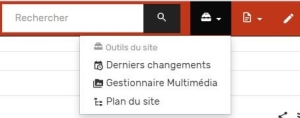
At the top right you will find the search function dedicated to the wiki.
To modify a page
- Click on “Modify this page”, or on one of the small buttons
 at the bottom right of each paragraph.
 - The source code is displayed with special characters such as '=' or '*' (see examples below), which are used to mark up the text for formatting. Use the toolbar at the top of the editing area to format the text, or add images, then click on 'Preview' to see the effect produced.

- Once you are happy with the result, fill in the orange “Summary” field with the changes you have made and click “Save”.

To create a new page
Only registered members can create a page in the wiki.
To create a new page, nothing could be simpler: just type the title you want to give to this page in the “Search” field at the bottom left and click Search.
Appears:
- the list of existing pages containing the words in the title you have chosen,
- and the option of creating the page (if it doesn't already exist!): click on “Create this page” in the top left-hand corner.
Examples of layouts
DokuWiki accepts the following formatting: bold, italic, underlined and fixed caster. Of course, you can combine these layouts.
The corresponding source code :
 DokuWiki accepts the following formatting: **bold**, //italic//, __underlined__ and ''fixed caster''.
Of course, you can **__//''combine''//__** these layouts.
Pictures on the wiki
Please host them on the site to ensure their continuity. Use the “media manager” link in the top menu
OR
The button 
Advanced use
Below you'll find all the tags and settings you can use to edit wiki pages.
Feel free to use the page_test to practise. Below you will find examples of the text once published, followed by the text as entered in the source code (in a dotted box).
1. Simple text editing
DokuWiki accepts the following formatting: bold, italic, underlined and fixed caster. Of course, you can combine these layouts.
Of course, you can combine these layouts.
DokuWiki accepts the following formatting: **bold**, //italic//, __underlined__ and ''fixed caster''.
Of course, you can **__//''combine''//__** these layouts.
You can also use indice and exposant.
You can also use <sub>indice</sub> and <sup>exposant</sup>.
To create a paragraph, simply insert a blank line.
If you simply want to insert a line break, use two backslash (altgr + 8) followed by a space or line break.
This is text with a line break.
Note that the double backslash is only recognised at the end of a line
or if it is followed by a space.
This is text with a **line break**.\\
Note that the double backslash is only recognised at the end of a line
or if it is followed by a space.
As a general rule, use this option sparingly.
Line feed after a floating element
Use the instruction below
<WRAP clear></WRAP>
2. Links
DokuWiki offers several options for creating a link.
External links
External links are automatically recognised : http://www.google.com or simply www.google.com - You can name your links : This link goes to Google. For email addresses: oli_v_ier@yahoo.fr is recognised.
External links are automatically recognised : http://www.google.com or simply www.google.com - You can name your links : [[http://www.google.com|This link goes to Google]]. For email addresses: <oli_v_ier@yahoo.fr> is recognised.
Internal links
Internal links are those referring to other pages on this site.
Simple internal links
They are created by simply adding double square brackets around the page name. Example: a link to the “create a page” page: create a page. Here is the code used to create this link:
[[create a page]]
Change the words in the link
If you want the words in the link to be different from the name of the page, simply add the “|” symbol and the words you want in the link. Example: Ce lien leads to the “create a page” page. Code used :
Ce [[create a page|link]] leads to the "create a page".
Notes:
- LLinks to existing pages appear differently from those pointing to the does not yet exist.
Links to the paragraph of a page
Links to a page paragraph are also possible. Add the name of the paragraph to the link using a pound sign “#”. Example to create a link to the “bizarre this system” paragraph on the “create a page” paragraph: bizarre this system. Code used :
[[create a page#bizarre this system|bizarre this system]].
Notes:
- When the title of a paragraph is changed, the links relating to that paragraph will no longer work, so it is best to avoid using them.
Interwiki
DokuWiki lets you create links wiki:interwiki. These are quick links to other wikis. This link to Wikipedia's page on wikis: Wiki.
DokuWiki lets you create links [[doku>wiki:interwiki]]. These are quick links to other wikis. This link to Wikipedia's page on wikis: [[wp>Wiki]].
Windows sharing
Network shares in Windows fichier are recognised. These links are therefore reserved for a wiki application on an intranet or local network.
Les partages réseau sous Windows [[serveurpartage|fichier]] sont reconnus.
Illustrated links
You can also illustrate your links with an image as follows:
[[http://www.php.net|{{wiki:php-powered.png}}]]

3. Notes
The plugin Wrap plugin Wrap is used on the wiki.
The following customisation options are available
<WRAP center round important 80%>
- Left / center / right ⇒ to align the block on the page left, centre or right
- Round ou
rien⇒ for rounded or square corners - group, box, info, top, important, help, download, todo ⇒ for the type of block (contextualises the small icon and the colour of your block)
- 80% ⇒ for the width of your block in relation to the page
The different possible uses
With the Wrap plugin, you can add notes like these:
Put text in 2 columns
Use the buttons
 then
then  , to get :
Lorem ipsum dolor sit amet, consectetur adipiscing elit. Nulla sit amet mattis ex. Etiam sollicitudin sem sed orci rutrum vulputate. Proin tortor tortor, dignissim commodo eleifend malesuada, euismod sed felis. Nam sit amet mauris sodales, sagittis ex vitae, rhoncus lectus. Nullam quis imperdiet dolor. Duis et condimentum magna, vitae dignissim dui. Phasellus dignissim euismod diam, id tempus justo laoreet ut. Nulla quis nisl elementum, sollicitudin libero vel, tristique tortor. Quisque eget nisi sit amet orci pretium laoreet sagittis vel nunc.
Nullam convallis neque a lectus sollicitudin dapibus. Pellentesque ac orci sit amet libero fermentum facilisis. Ut varius quam eget lacus dignissim interdum nec in est. Donec in eros in nibh tempor ornare. Nulla porttitor in purus id malesuada. Mauris sed libero eu massa aliquam faucibus. Praesent lacinia a nisl quis gravida. Fusce tellus ipsum, condimentum porta posuere ut, pharetra vel lectus. Nunc at imperdiet purus, ut semper orci. Cum sociis natoque penatibus et magnis dis parturient montes, nascetur ridiculus mus. In non feugiat massa, quis pharetra quam. Ut eu lacus ante. Cum sociis natoque penatibus et magnis dis parturient montes, nascetur ridiculus mus.
With the following code :
<WRAP group>
<WRAP half column>
Text column 1
</WRAP>

<WRAP half column>
Text column 2
</WRAP>
</WRAP>
A simple note to attract attention
Use the buttons
then  , to get :
bloc simple
With the following code :
<WRAP center round box 80%>
bloc simple
</WRAP>
A note presenting information
Use the buttons
then  , to get :
bloc information
With the following code :
<WRAP center round info 80%>
bloc information
</WRAP>
A note to give you an idea, a tip
Use the buttons
then  , to get :
bloc astuce
With the following code :
<WRAP center round tip 80%>
bloc astuce
</WRAP>
A note to draw attention to something very important
Use the buttons
then  , to get :
bloc important
With the following code :
<WRAP center round important 80%>
bloc important
</WRAP>
A note to highlight help
Use the buttons
then  , to get :
bloc aide
With the following code :
<WRAP center round help 80%>
bloc aide
</WRAP>
A note to suggest a download
Use the buttons
then  , to get :
bloc téléchargement
With the following code :
<WRAP center round download 80%>
bloc téléchargement
</WRAP>
A note to draw attention to something you need to do
Use the buttons
then  , to get :
bloc à faire
With the following code :
<WRAP center round todo 80%>
bloc à faire
</WRAP>
Restore flow after a floating element
If you encounter a formatting problem after using a WRAP block, you need to restore the order of the flow (reposition your text to the bottom left) using the button then  , to obtain the following code :
<WRAP clear/>
Text formatting
Finally, the WRAP plugin lets you format text. To do this, use the button
puis  ,
,  ou
ou  pour obtenir les codes suivants :
particularly important
important
little important
with the following codes :
<wrap em>particulièrement important</wrap>
<wrap hi>important</wrap>
<wrap lo>peu important</wrap>
4. Note de bas de page
You can add footnotes 1) using double brackets.
You can add footnotes ((This is a footnote))
5. Sections
You can use up to 5 levels of hierarchy for the content of the wiki. If you have more than 3 chapters, a table of contents is generated automatically.
– This function can be deactivated using the following command ~~NOTOC~~ in the document.
level title 3
level title 4
level title 5
==== level title 3 ====
=== level title 4 ===
== level title 5 ==
by using 4 dashes (key 6) you can insert a horizontal line:
6. Images and other files
Please use only your own images or images that are free of copyright. A certain amount of tolerance is applied to images of equipment taken from manufacturers' websites, but you may be asked to remove them at any time.
Be careful with the weight of your images, especially if they are uploaded to the wiki:
- Réduisez la taille de l'image en la recadrant: 300 pixels de large/haut suffisent généralement, faire un lien vers une image plus grande si nécessaire,
- Réduisez le poids de l'image en la compressant (en format jpeg par exemple): 20ko c'est bien, 50ko ça commence à faire, 100ko c'est beaucoup…
You can insert images as follows :
For images hosted on the site's server :
Full size: 
Resized in width (pixels) : 
Resized en L par H :
Pleine taille:             {{::logo-rouge.png?}}
Redimensionnée en largeur (pixels) : {{:logo-rouge.png?direct&80|}}
Redimensionnée en L par H :  {{:logo-rouge.png?direct&100x100|}}
By using a space before or after the braces, you can align to the right, to the left, to simply centre, insert a space before and after :
{{ ::logo-rouge.png?}}
{{::logo-rouge.png? }}
{{ ::logo-rouge.png? }}
And, of course, you can add a caption, again following the same logic (which will be displayed as a tooltip by most browsers):
{{ :logo-rouge.png? |Légende}}
If you specify a link (external or internal) that is not an image (gif,jpeg,png) this will be displayed as a download link.
By default, images can be clicked to display linked information. Adding ?nolink removes this link.
{{:logo-rouge.png?nolink}}
7. List
Dokuwiki makes it easy to create ordered or unordered lists. To create a list, insert two spaces and add a * for unordered lists (points) or a - for ordered lists (1,2,3…).
- Ceci est une liste
- Deuxième item
- Vous pouvez insérer des sous niveau avec deux espaces
- Autre item
- Même liste mais ordonnée
- Autre item
- Indentez de deux espace pour descendre d'un niveau
- Et voilà
  * Ceci est une liste
  * Deuxième item
    * Vous pouvez insérer des sous niveau avec deux espaces
  * Autre item

  - Même liste mais ordonnée
  - Autre item
    - Indentez de deux espace pour descendre d'un niveau
  - Et voilà
8. Emoticones
DokuWiki replaces the most commonly used emoticons with their graphical equivalents. Here is an overview of those available:
 8-)
8-)  8-O
8-O  :-(
:-(  :-)
:-)  =)
=)  :-/
:-/ - :- :-
 :-?
:-?  :-D
:-D  :-P
:-P  :-O
:-O  :-X
:-X  :-|
:-|  ;-)
;-)  ^_^
^_^  :?:
:?:  :!:
:!:  LOL
LOL  FIXME
FIXME  DELETEME
9. Typography
DokuWiki can convert simple characters into their typographic equivalent. Here is an example of the characters recognised.
→ ← ↔ ⇒ ⇐ ⇔ » « – — 640×480 © ™ ® “He thought 'It's a man's world'…”
-> <- <-> => <= <=> >> << -- --- 640x480 (c) (tm) (r)
"He thought 'It's a man's world'..."
10. Tables
DokuWiki offers a very simple syntax for creating tables using the “pipe” character (altgr+6).
| Titre 1 | Titre 2 | Titre 3 |
|---|---|---|
| Ligne 1 Colonne 1 | Ligne 1 Colonne 2 | Ligne 1 Colonne 3 |
| Ligne 2 Colonne 1 | Une fusion de ligne (notez le double pipe) | |
| Ligne 3 Colonne 1 | Ligne 2 Colonne 2 | Ligne 2 Colonne 3 |
Rows in a table must begin and end with a | pipe and with a ^ for headings.
^ Titre 1      ^ Titre 2       ^ Titre 3          ^
| Ligne 1 Colonne 1    | Ligne 1 Colonne 2     | Ligne 1 Colonne 3        |
| Ligne 2 Colonne 1    | Une fusion de ligne (notez le double pipe) ||
| Ligne 3 Colonne 1    | Ligne 2 Colonne 2     | Ligne 2 Colonne 3        |
To merge the cells horizontally, create an empty cell as above. Be careful to keep the right number of separators.
Double entry tables are also possible, of course.
| Titre 1 | Titre 2 | |
|---|---|---|
| Titre 3 | Ligne 1 Colonne 2 | Ligne 1 Colonne 3 |
| Titre 4 | no colspan this time | |
| Titre 5 | Ligne 2 Colonne 2 | Ligne 2 Colonne 3 |
As you can see, it is the cell separator that determines how the table is formatted:
|              ^ Titre 1            ^ Titre 2          ^
^ Titre 3    | Ligne 1 Colonne 2          | Ligne 1 Colonne 3        |
^ Titre 4    | no colspan this time |                    |
^ Titre 5    | Ligne 2 Colonne 2          | Ligne 2 Colonne 3        |
Note: columns cannot be merged.
11. Gross items
You can include elements that will not be processed by the Wiki syntax processor by including two spaces at the beginning of the line or by using the code or file tag.
Ceci est un exemple de code <a href="http://www.km-fr.com">km-fr.com</a>
<file>
Vous pouvez utiliser cette balise pour faire réference à un fichier externe.
</file>
To force the syntax processor to ignore a passage completely, use either the nowiki tag, %%.
Ceci est un passage qui n'est pas pris en compte par le processeur syntaxique http://www.splitbrain.org et **gras** auquel aucun formatage n'est appliqué.
Cliquer sur éditer pour voir la syntaxe originale.
12. Plugin WRAP
Le plugin wraphas been installed, it is a very powerful page layout tool.
The main functions can be accessed by clicking the on the toolbar when editing a page.
Full details (in English) here : https://www.dokuwiki.org/plugin:wrap .
 lideelle